

Hello! This is our first tutorial on how to create a free local WordPress test site on your computer quickly and easily, free of charge!
This guide explains in detail how to create your own local WordPress website using XAMPP.
Why would I need a local WordPress website?
Creating a local WordPress site is an important step, especially if you want to learn WordPress thoroughly or experiment with new features and designs without affecting your live website. It provides a safe environment for learning and experimenting.
What is XAMPP?
XAMPP is a free, open-source software package that provides a complete local server environment for developing and testing websites on your computer. XAMPP takes its name from “X” (the operating system, such as “Linux”), “Apache”, “MySQL”, “PHP” and “Perl”.
Downloading and installing XAMPP
Go to the official XAMPP website – https://www.apachefriends.org/ and download the XAMPP version that suits your computer.
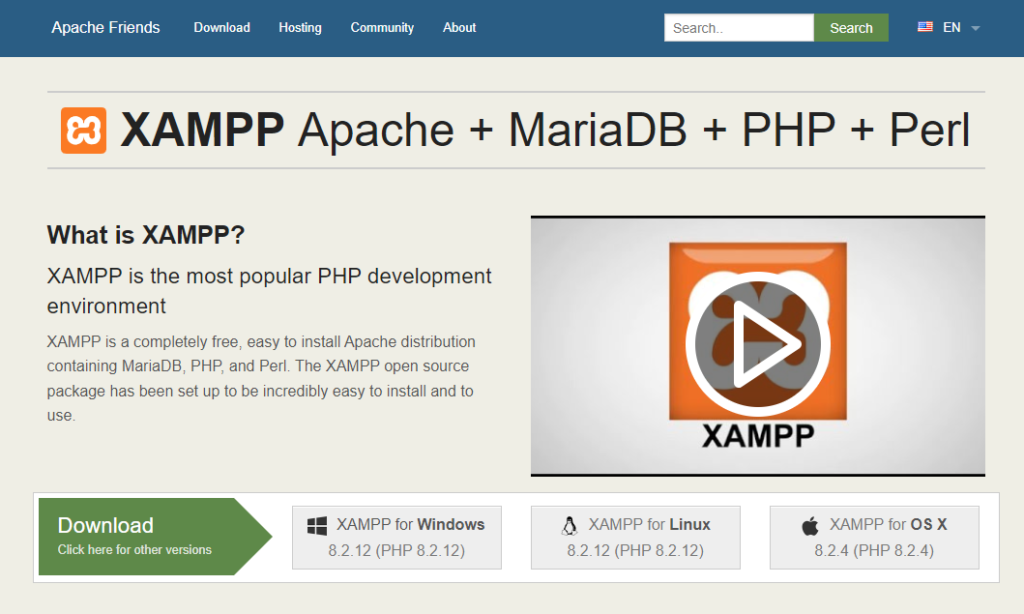
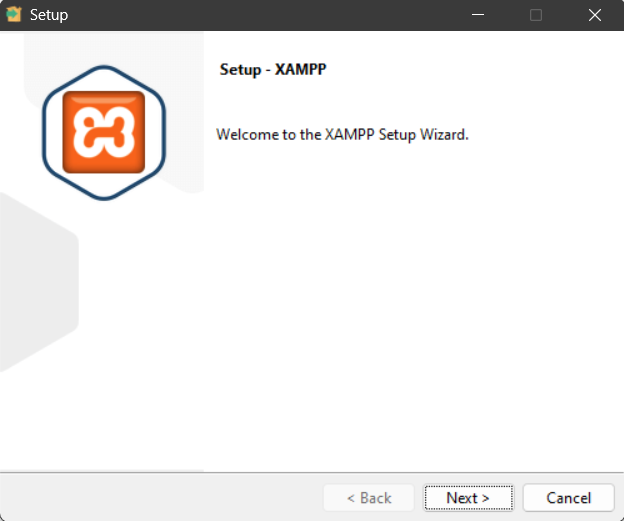
Once the XAMPP installer has downloaded, open it to start installation.
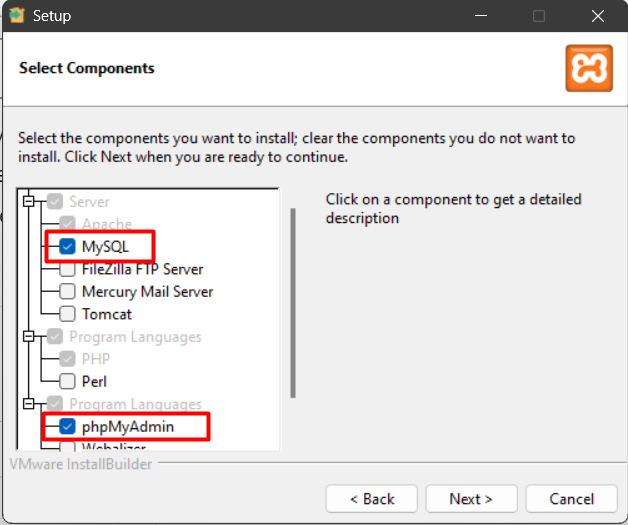
The most important XAMPP components for running WordPress locally are MySQL and phpMyAdmin; you can select other components if you need them.
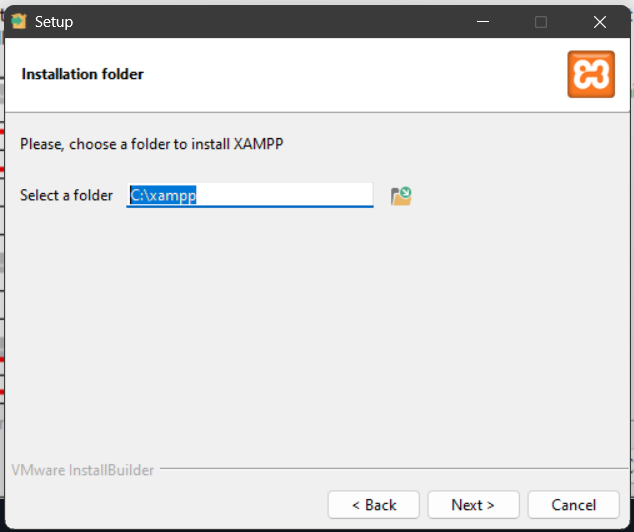
During installation, remember where XAMPP files are saved, as this is where you'll place the WordPress files. Choose a location and complete the installation.
Once installation is complete, you should find a new application on your computer called XAMPP Control Panel, which you can open.
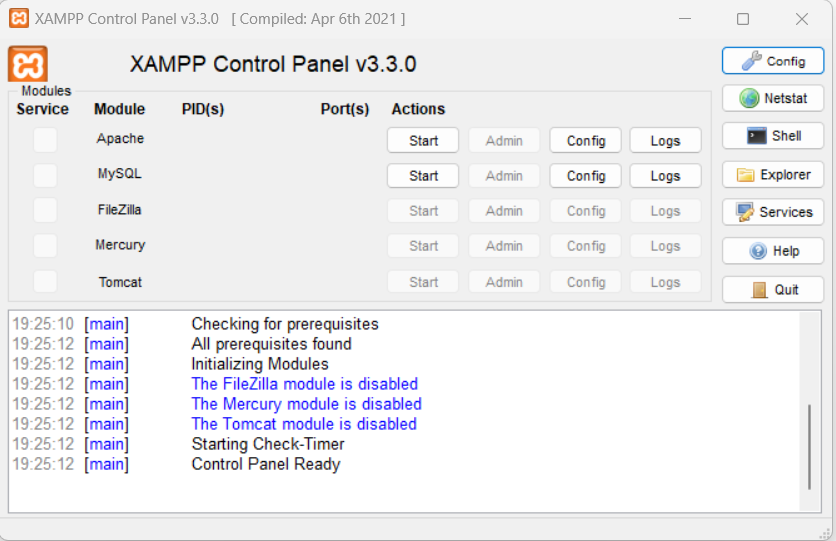
Important, if you run XAMPP on Windows and another program on your computer uses port 80 or 443, you may encounter a port conflict. For example, the World Wide Web Publishing Service service typically uses port 80. This can conflict with XAMPP.
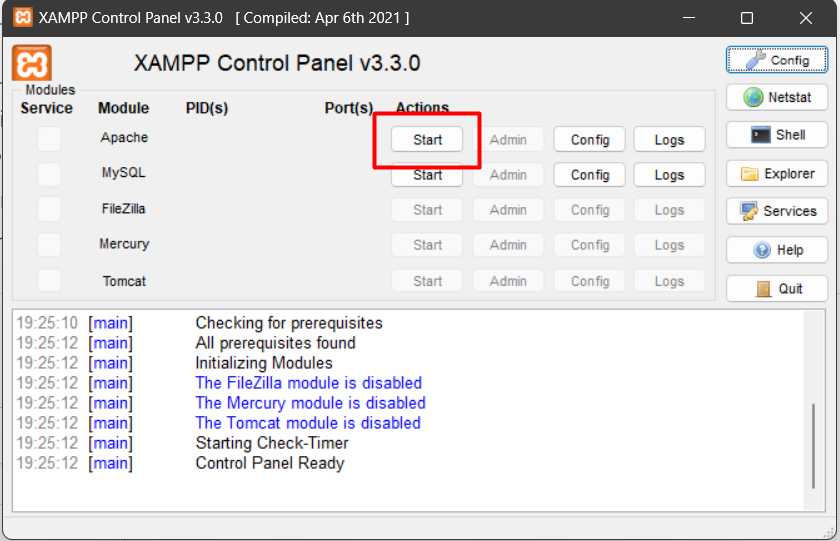
Before doing anything else, test the Apache server by starting it.
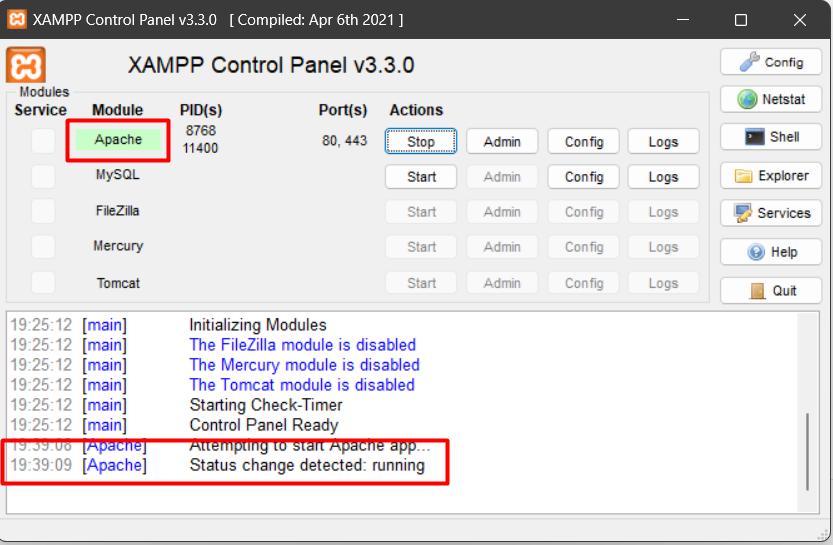
Once Apache has started successfully, you can check its status in the XAMPP Control Panel.
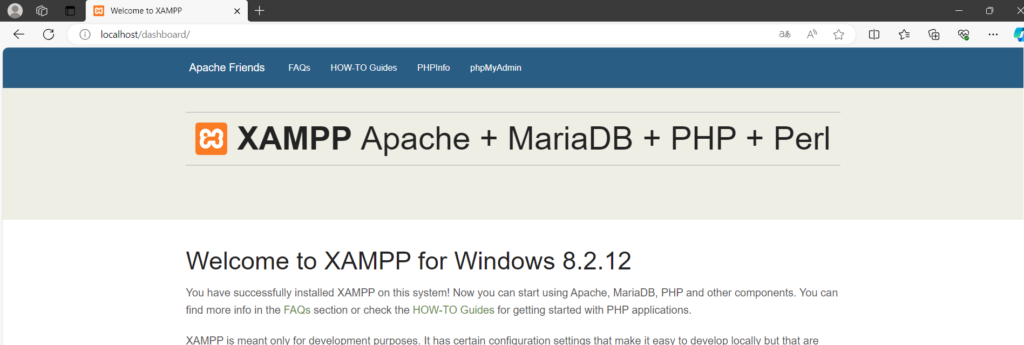
You can also check it by opening a browser and entering the address – localhost
Preparing the database
Before installing WordPress, you'll need to prepare a new MySQL database.
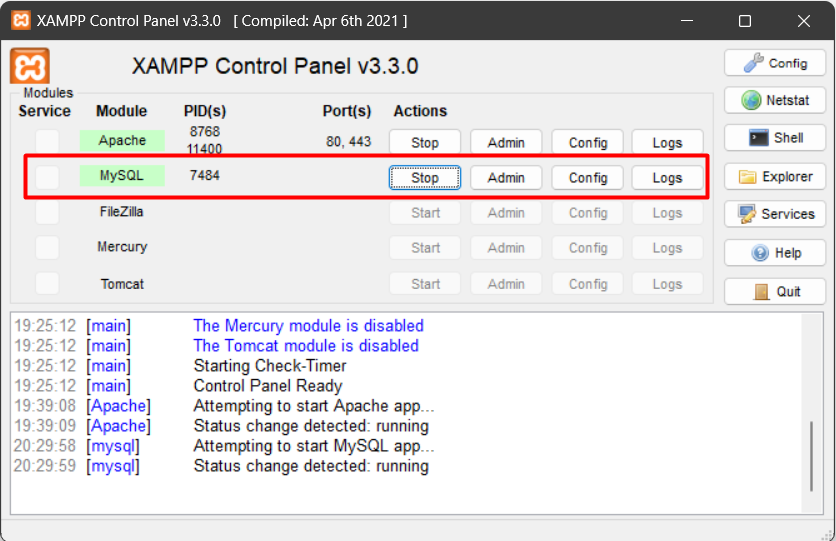
You can do this by starting the MySQL service in XAMPP Control Panel.
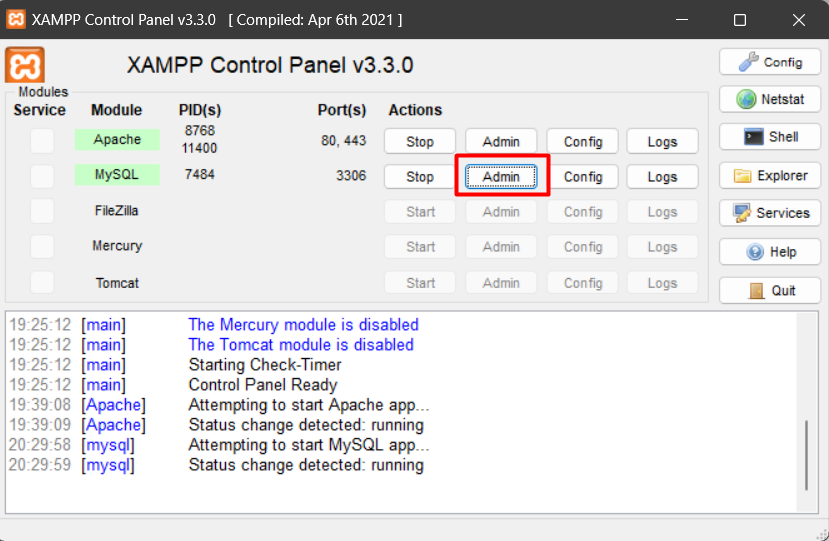
Once MySQL is running, open phpMyAdmin by clicking Admin in the control panel.
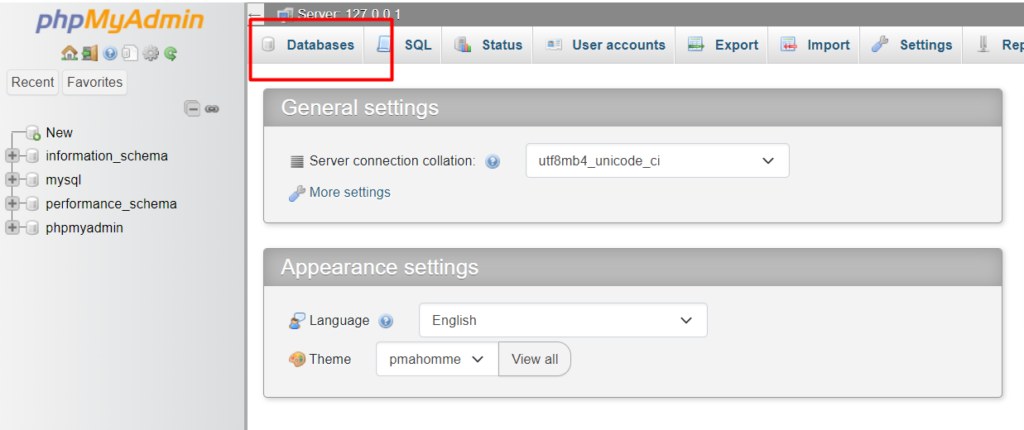
On the page that opens, create a new database named wordpress, which you can do under databases
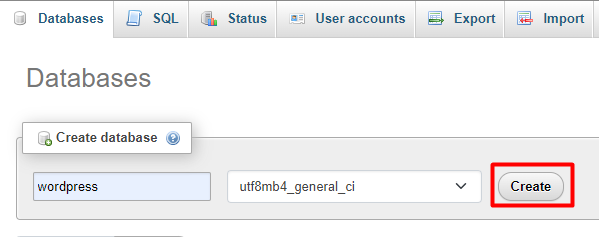
Once you've entered the name, click Create.
Installing WordPress
To install WordPress, download it from the official website – https://wordpress.org/download/
Once downloaded, you'll have a WordPress ZIP file. Extract it into XAMPP's htdocs folder.
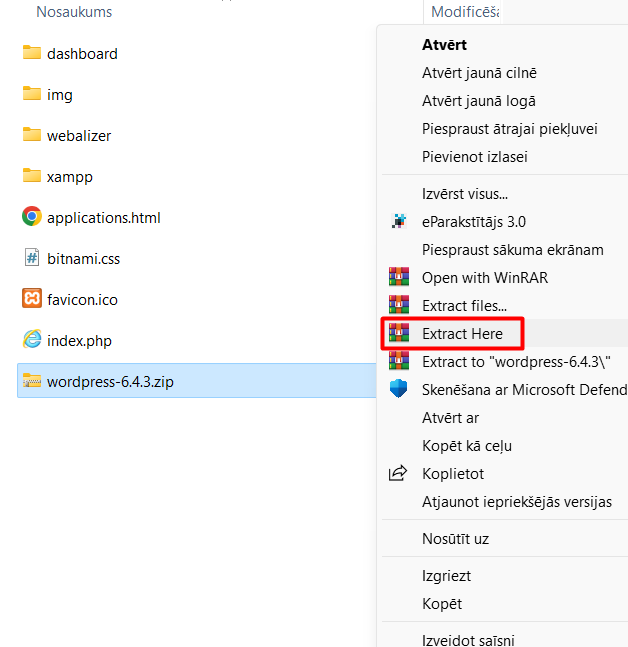
You should then see a new folder called wordpress.
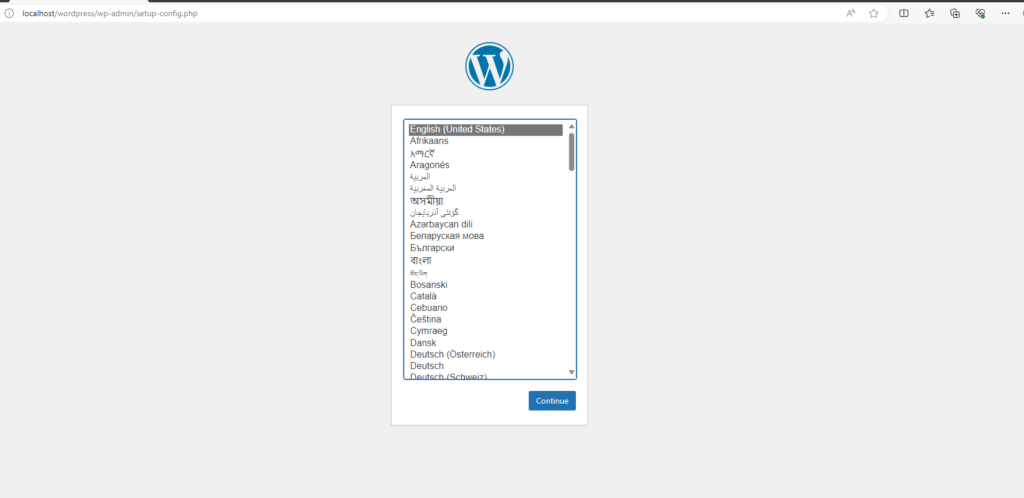
After placing the files, enter localhost/wordpress in your browser to open the WordPress installation screen.
First, choose the website language (choose whichever language you prefer). Once you've selected a language, click “Continue“.
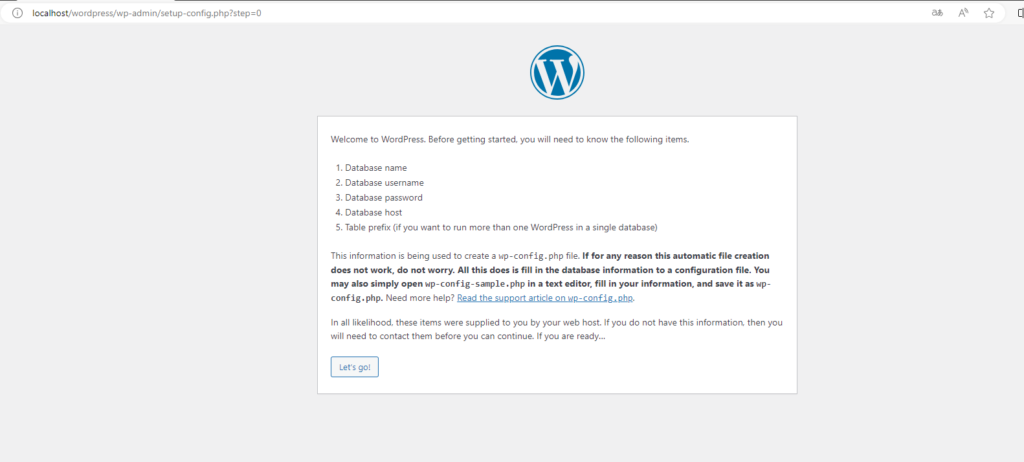
The next screen explains that you'll need to enter your database details during installation.
Click the “Let’s go!” button.
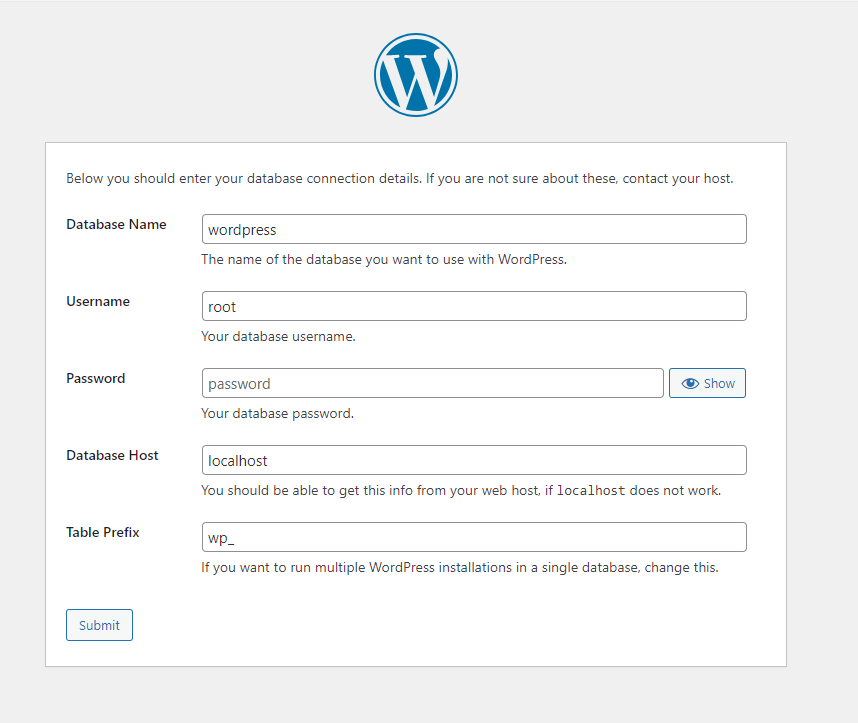
Because you're using the default XAMPP MySQL configuration, you only need to enter the database name and username, leave the password blank and keep the default Database Host and Table Prefix values.
Database Name: wordpress (example for this tutorial; use your own name if you created a different database)
Username: root
Once you've entered these details, click “Submit“
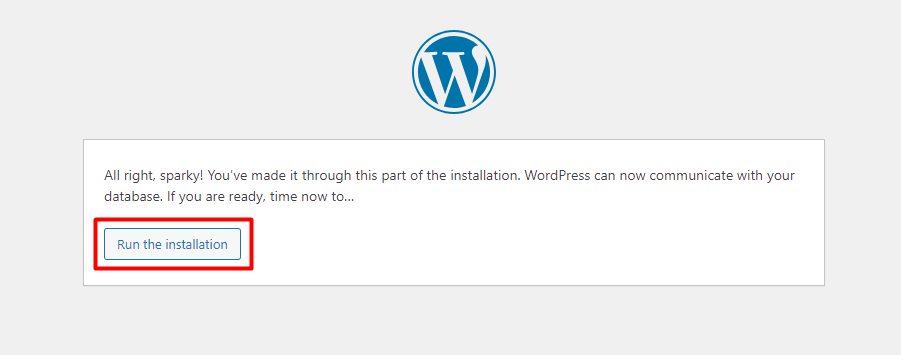
If the database connection succeeds, you'll see a new page with the button “Run the installation“
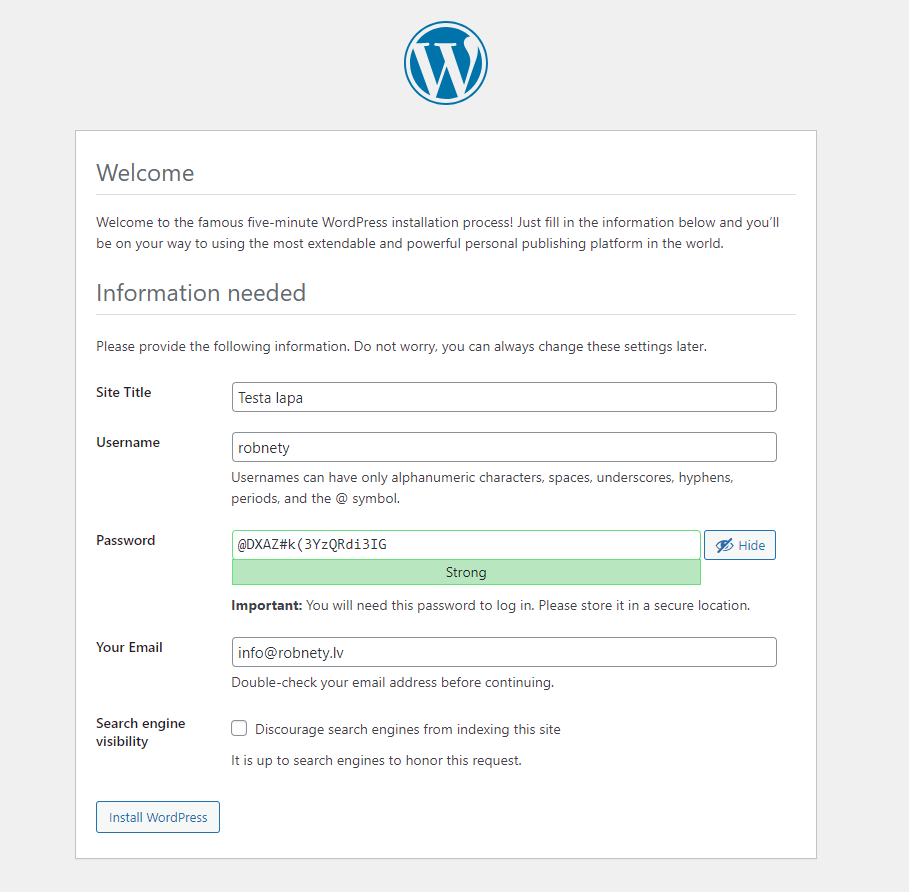
The final WordPress installation step is to enter the website name and create an administrator account.
Complete these details to suit your intended website, then click “Install WordPress“
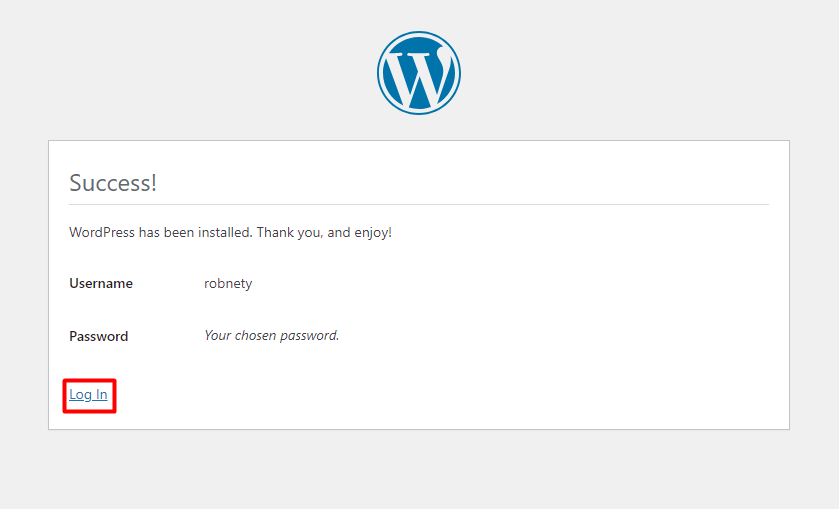
After setting up the site name and user, you should see a successful installation message. Click “Log In” below it to access your new site.
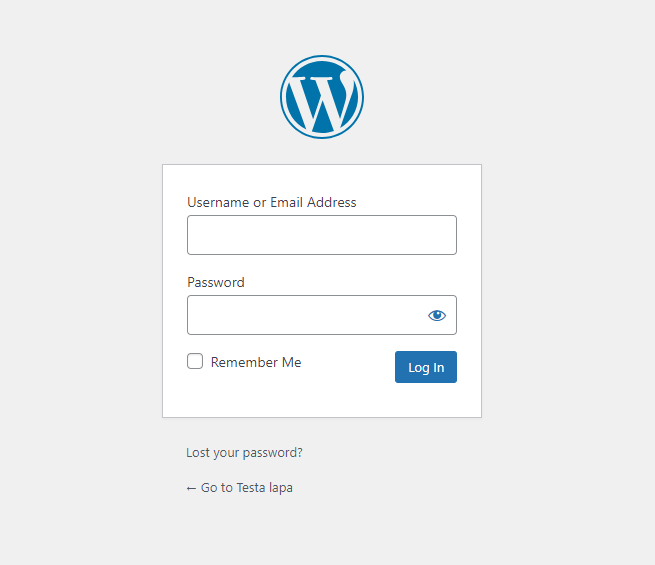
Finally, log in to your website with the administrator account you created.
That's everything you need to create a local WordPress website. We hope the instructions were clear and helped you achieve your goal.
Remember, this is only the first step towards your digital ambitions. Every step helps you learn, grow and develop your web development skills.
Have a great day, and see you soon!